

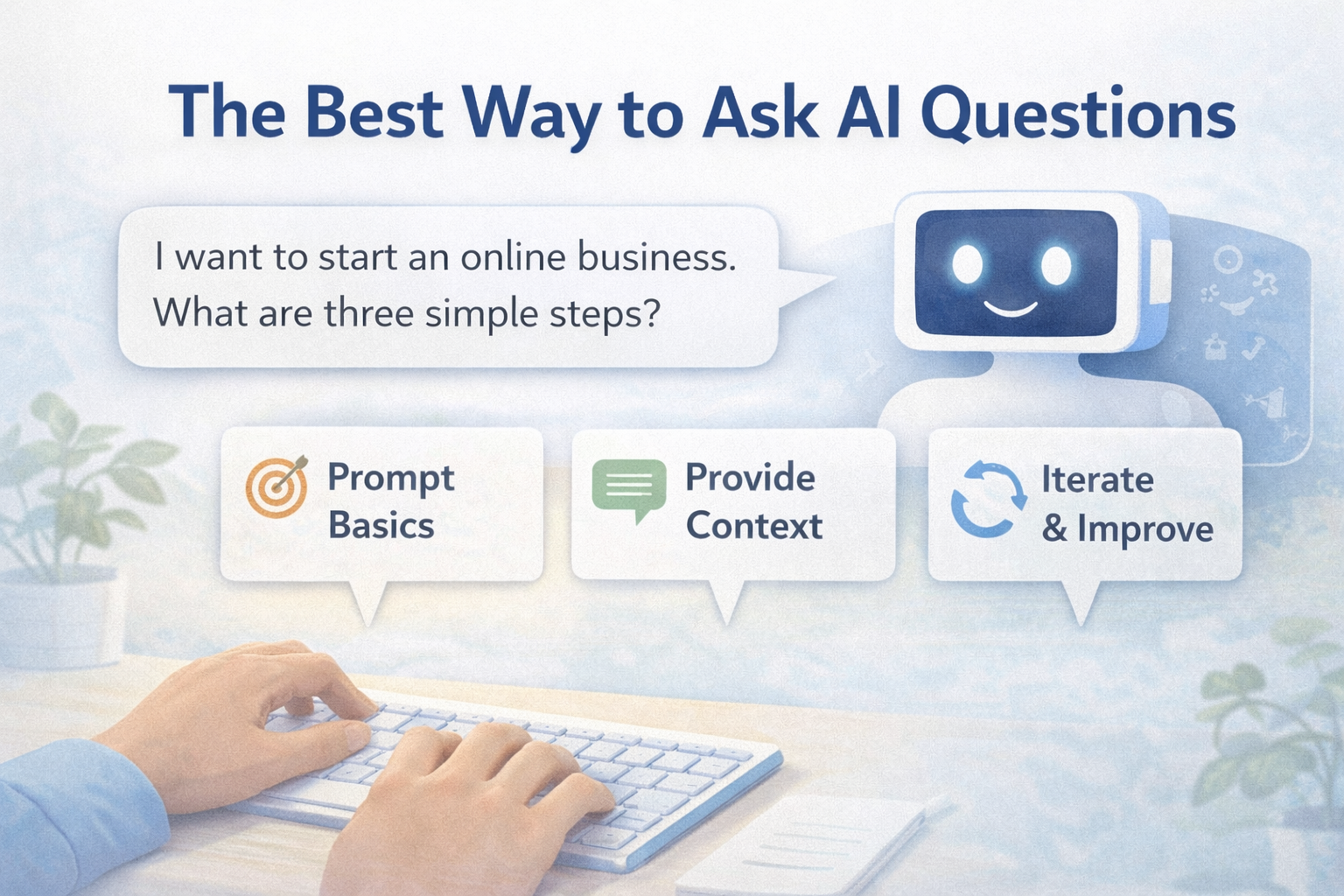
The Best Way to Ask AI Questions So You Get Useful Answers
Improve AI results instantly by learning prompt basics, giving context, and refining responses instead of restarting.
Most people ask AI vague questions. Learn how to give better prompts and get useful answers right away.
Get better AI responses by learning how to ask clear questions, add context, and refine prompts step by step.
One of the most common things people say about AI is:
“I tried it… but the answers weren’t very helpful.”
In almost every case, the problem isn’t the AI.
It’s the question.
AI doesn’t think the way humans do. It doesn’t “figure out what you meant.” It responds directly to what you give it — the clarity, context, and direction of your input.
The good news?
You don’t need to be technical or learn complicated prompt formulas.
A few simple shifts in how you ask questions can dramatically improve the quality of the answers you get — immediately.
This article shows you the best way to ask AI questions so you get useful, relevant, and actionable responses.
Why AI Answers Often Feel Generic or Off-Target
When people feel disappointed by AI, it’s usually because they ask questions like:
“Write an email”
“Give me business ideas”
“How do I make money online?”
“Help me with AI”
These prompts are vague.
AI responds by:
Making assumptions
Playing it safe
Giving generic advice
The result feels shallow — because the input was shallow.
AI performs best when it understands:
Who you are
What you’re trying to do
What level you’re at
What you want right now
That’s where better prompting begins.
The Foundation: Prompt Basics (Keep This Simple)
You don’t need fancy prompt templates.
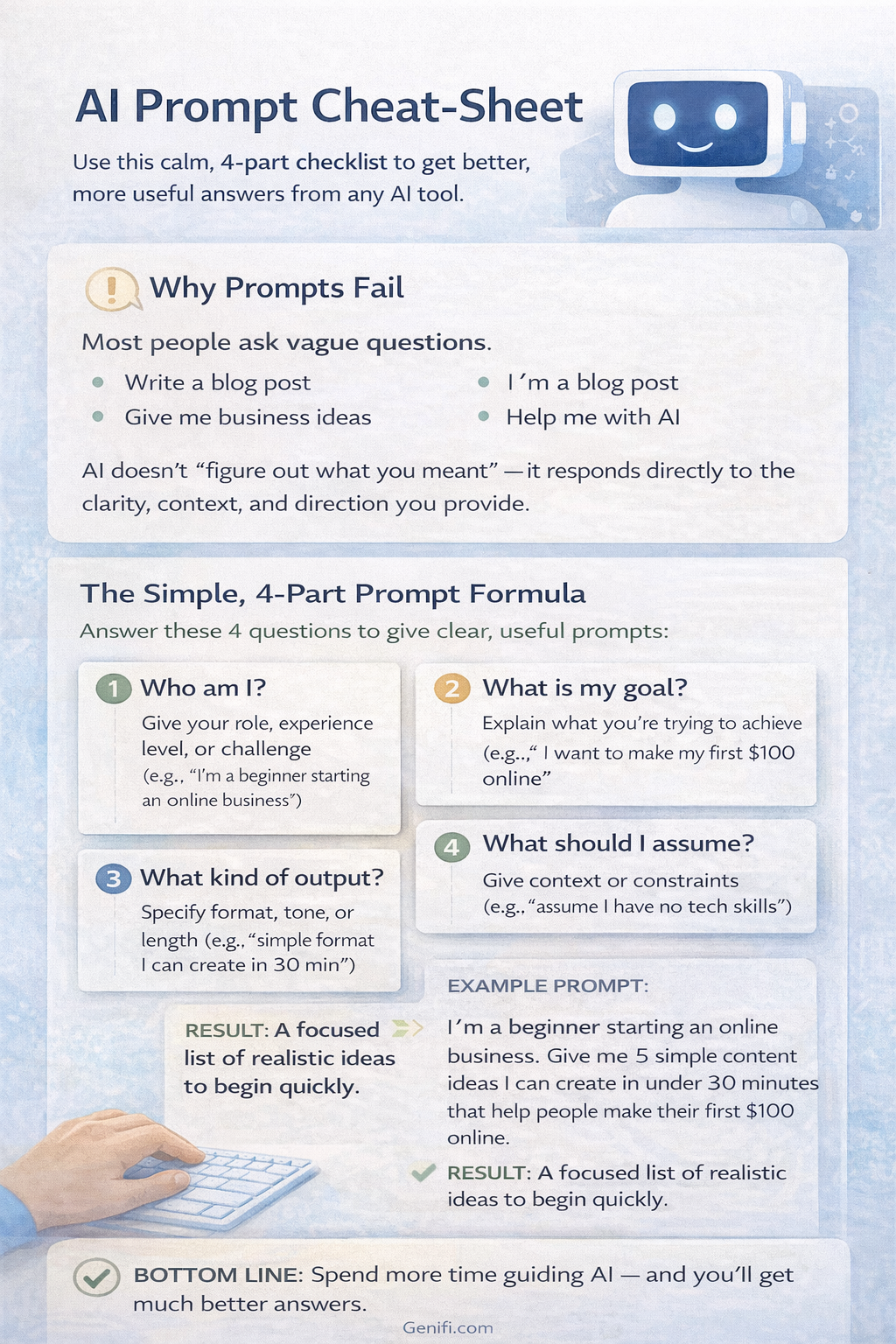
At its core, a good AI prompt answers three basic questions:
Who am I?
What am I trying to do?
What kind of output do I want?
That’s it.
Example of a weak prompt:
“Give me content ideas.”
Example of a strong prompt:
“I’m a beginner building an online business. Give me 5 simple content ideas I can create in under 30 minutes that help people make their first $100 online.”
Same request — vastly better result.
Step 1: Always Give Context First
Context is the single biggest upgrade you can make.
AI doesn’t know:
Your experience level
Your goals
Your time constraints
Your audience
Unless you tell it.
Add context like:
“I’m a beginner”
“I’m short on time”
“I want something simple”
“This is for email/blog/social”
“Assume I have no tech background”
Example:
Instead of:
“Write a blog post about AI”
Try:
“I’m writing for beginners who feel overwhelmed by AI. Write a calm, educational blog post explaining how AI can be used simply without hype.”
Context turns generic answers into relevant ones.
Step 2: Be Clear About the Outcome You Want
AI can produce many types of output.
If you don’t specify what you want, it chooses for you — and often misses the mark.
Be explicit about:
Length
Tone
Format
Purpose
Examples:
“Write a short explanation”
“Give me bullet points”
“Make this beginner-friendly”
“Avoid hype”
“Explain like I’m new”
Example:
“Explain this in simple terms for someone new to AI, using practical examples.”
Clarity saves time and reduces frustration.
Step 3: Ask AI to Ask You Questions
This is one of the most powerful — and underused — techniques.
If you’re unsure what to ask, say so.
Example:
“I’m not sure how to explain this idea clearly. Ask me 5 questions to help clarify my thinking before writing anything.”
This turns AI into a thinking partner instead of a guessing machine.
It also:
Reduces bad first drafts
Improves relevance
Helps you think more clearly
Step 4: Iterate Instead of Restarting
Most people make this mistake:
They don’t like the first response — so they start over.
That throws away context.
Instead, build on the same conversation.
Better approach:
“Make this simpler”
“Rewrite this for beginners”
“Add examples”
“Shorten this”
“Change the tone to be more supportive”
AI improves dramatically when you iterate.
Think of it like giving feedback to a human assistant — not hitting reset every time.
Step 5: Treat AI Like a Draft Partner, Not a Final Answer
AI is excellent at:
Drafting
Organizing
Summarizing
Clarifying
It is not meant to be the final authority.
Your role is to:
Review
Edit
Decide what fits
Remove what doesn’t
When you approach AI this way, results feel empowering instead of disappointing.
A Simple Prompt Formula You Can Use Daily
Here’s a simple structure you can reuse:
“I am [who you are].
I am trying to [goal].
I want the output to be [format/tone/length].
Assume I am [experience level].”
Example:
“I am a beginner learning to use AI for business. I want a simple explanation of how to write better prompts, using examples, in a calm and non-technical tone.”
This works across:
Writing
Research
Planning
Brainstorming
Learning
Why This Works (And Why Results Improve Immediately)
Better prompts:
Reduce guesswork
Improve relevance
Save time
Lower frustration
Most people don’t need new tools.
They just need to communicate more clearly with the tools they already have.
Once you experience better AI responses, confidence grows — and fear disappears.
Final Thoughts
AI isn’t magic.
But it is extremely responsive.
The quality of your results depends less on the tool — and more on how you guide it.
When you:
Provide context
Clarify your goal
Iterate instead of restarting
AI becomes a powerful assistant instead of a confusing one.
That single shift can transform how useful AI feels in your daily work — immediately.
How to Use AI as a Daily Assistant (Not a Replacement for Thinking)
Confused or overwhelmed by AI? Learn how to use AI as a daily assistant that supports your thinking instead of replacing it.
Discover a calm, practical way to use AI daily—without hype, fear, or losing control of your decisions.
AI doesn’t replace thinking—it supports it. Learn simple, realistic ways to use AI as a daily assistant.
AI is everywhere right now.
Some people are excited.
Some people are overwhelmed.
Some people are quietly worried they’re already behind.
And many are asking the same question:
“If AI can do so much… where does that leave me?”
The answer is simpler — and more reassuring — than most headlines make it sound.
AI isn’t here to replace your thinking.
It’s here to support it.
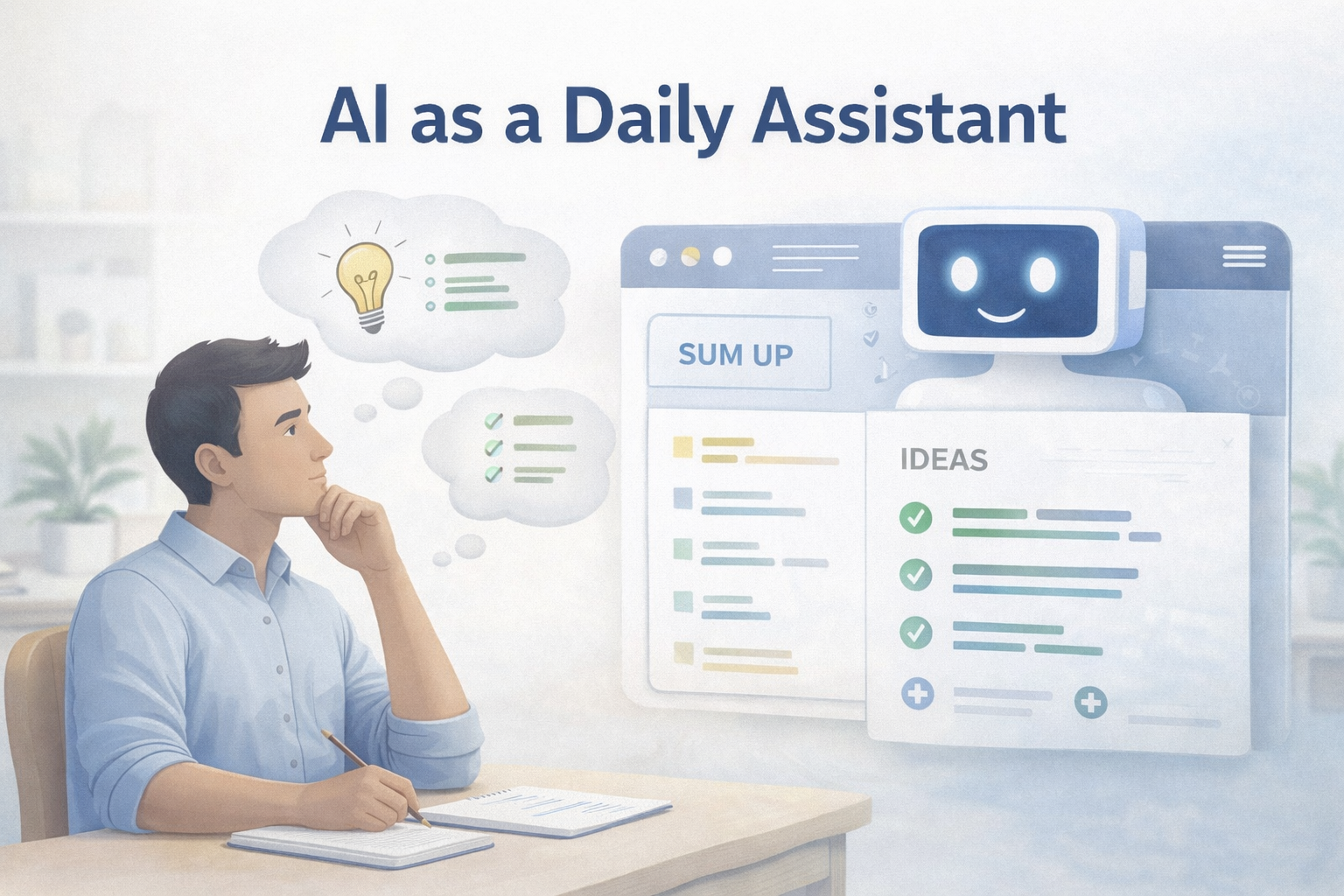
When used correctly, AI acts like a daily assistant that helps you move faster, stay focused, and reduce friction — without taking away your judgment, creativity, or decision-making.
This article will reset expectations and show you how to use AI calmly, practically, and productively.
First: What AI Is Actually Good At
AI shines when tasks are:
Repetitive
Time-consuming
Structured
Blank-page related
Think of AI as very good at starting, organizing, and supporting — not deciding.

AI is excellent at:
Generating ideas when you feel stuck
Turning rough thoughts into drafts
Summarizing information
Organizing lists or outlines
Rewriting text for clarity
Helping you think through options
AI reduces friction between thinking and doing.
What AI Is Not Good At (And Never Will Be)
This is where fear usually comes from.
AI does not:
Understand your goals the way you do
Know what matters most in your life
Make value-based decisions
Replace lived experience
Take responsibility for outcomes
AI doesn’t have judgment.
It doesn’t have context unless you provide it.
And it doesn’t care if the advice fits your real life.
That part is still yours — and always will be.
The Right Mental Model: AI as a Junior Assistant
A helpful way to think about AI is this:
AI is like a very fast, very capable assistant —
but you are still the manager.
You:
Decide what to ask
Decide what to keep
Decide what to ignore
Decide what to act on
AI supports your thinking.
It does not replace it.
When people struggle with AI, it’s usually because they expect it to think for them instead of with them.
Simple Daily Uses of AI (That Don’t Feel Overwhelming)
You don’t need to “use AI for everything.”
Here are small, realistic ways people successfully use AI each day.
1. Getting Unstuck When You Don’t Know Where to Start
Instead of staring at a blank screen, you can ask:
“Help me outline this idea simply.”
“Give me three ways to start this email.”
“Ask me five questions to clarify my thinking.”
AI helps you begin — not finish.
2. Turning Rough Thoughts Into Clear Writing
You can write messy, imperfect thoughts and ask AI to:
Clean them up
Make them clearer
Simplify the language
This doesn’t remove your voice — it refines it.
3. Summarizing Information Faster
Instead of reading 10 pages, you can:
Paste text and ask for a summary
Ask for key takeaways
Request a beginner-friendly explanation
This saves time and mental energy.
4. Creating Simple Structure
AI is excellent at:
Turning ideas into outlines
Organizing lists
Breaking big tasks into steps
Structure reduces overwhelm — and AI creates structure quickly.
5. Helping You Think, Not Decide
One of the most powerful uses of AI is reflective thinking:
“What are the pros and cons of this?”
“What might I be overlooking?”
“What questions should I be asking?”
You still make the decision — AI just helps you see the landscape more clearly.
What AI Should Never Replace
AI should never replace:
Your judgment
Your values
Your lived experience
Your responsibility
If something matters deeply — relationships, finances, ethics, long-term direction — AI can assist, but you decide.
That balance is the key to using AI confidently instead of fearfully.
Why This Approach Actually Works
People who succeed with AI don’t:
Chase every new tool
Automate everything
Try to be “ahead of everyone else”
They use AI to:
Save time
Reduce friction
Stay consistent
Think more clearly
This calm, grounded approach builds confidence instead of anxiety.
Resetting Expectations (The Most Important Part)
AI is not magic.
AI is not a shortcut to success.
AI is not a replacement for effort.
But it is:
A powerful support tool
A thinking partner
A way to reduce unnecessary struggle
When expectations are realistic, AI becomes empowering instead of intimidating.
Final Thoughts
You don’t need to fear AI.
You don’t need to master it overnight.
You don’t need to use it constantly.
You just need to see it clearly.
AI works best when it supports your thinking, your goals, and your pace — not when it tries to replace them.
Used this way, AI becomes a quiet advantage in daily life and work — not something to be afraid of.
And that’s where real progress begins.
How to Use Google More Effectively: Simple Search Tricks Most People Don’t Know
Most people search Google inefficiently. Learn simple tricks like site searches, quotation marks, and filters to get better results fast.
Discover powerful Google search techniques most people never use to save time, reduce frustration, and find better information online.
Improve your Google searches with easy techniques that help you filter results, remove noise, and find what you need faster.
Most people use Google every single day.
And most people are terrible at using it.
That’s not an insult — it’s just reality.
They type a few words, skim the first results, click randomly, and repeat the process when they don’t find what they need. Over time, this wastes hours, creates frustration, and makes simple tasks feel harder than they should.
The truth is, Google is an incredibly powerful tool — if you know how to speak its language.
This guide will show you a few simple, practical search tricks that dramatically improve your results, help you find answers faster, and make the internet work for you instead of against you.
No technical knowledge required.
Why Most People Struggle to Find What They’re Looking For
Google isn’t the problem.
The problem is how we search.
Most people:
Use vague phrases
Add unnecessary words
Scroll endlessly instead of refining
Don’t know they can control results
Google responds to how you ask — not just what you ask.
Once you learn a few basic operators, your searches become:
More precise
More relevant
Much faster
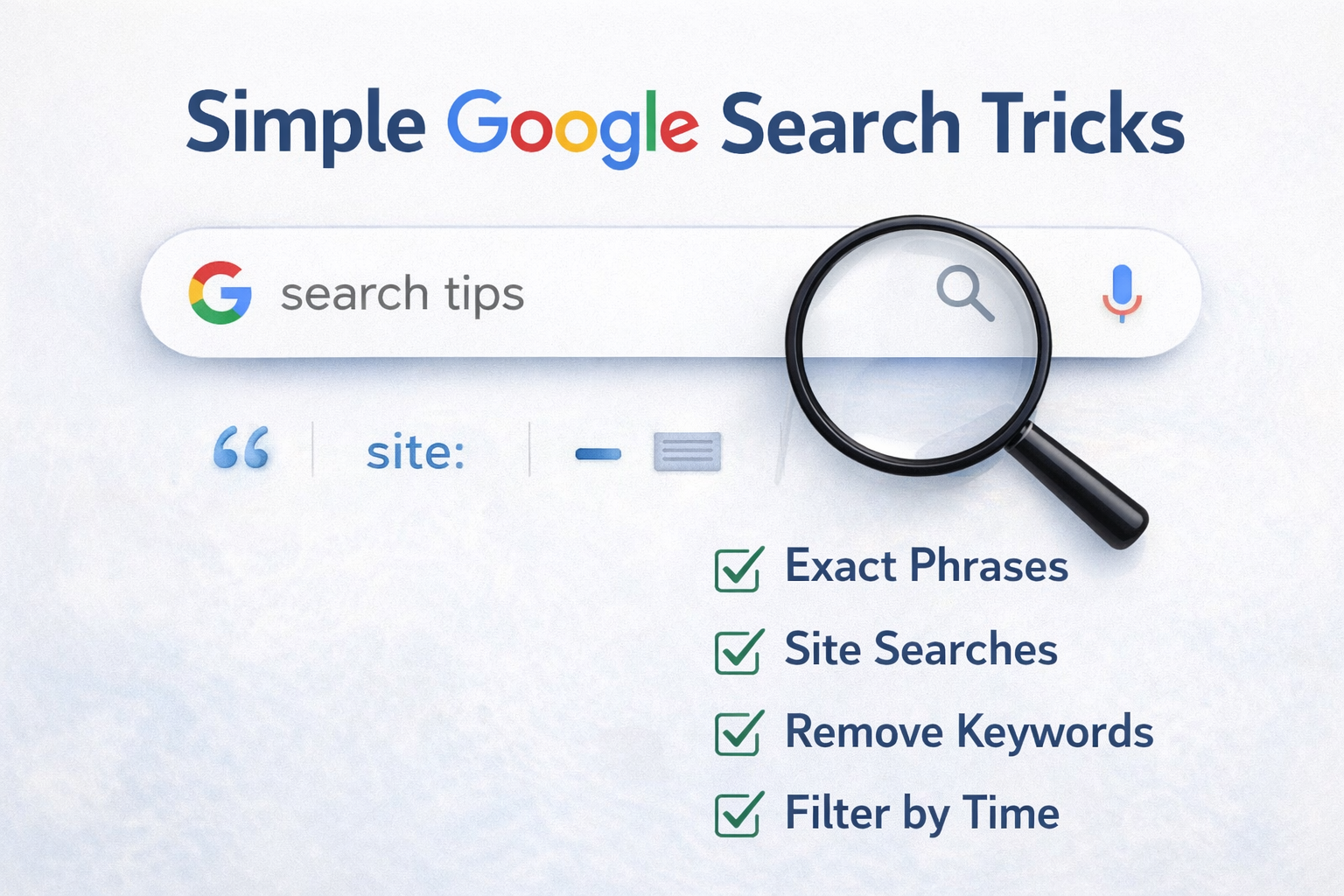
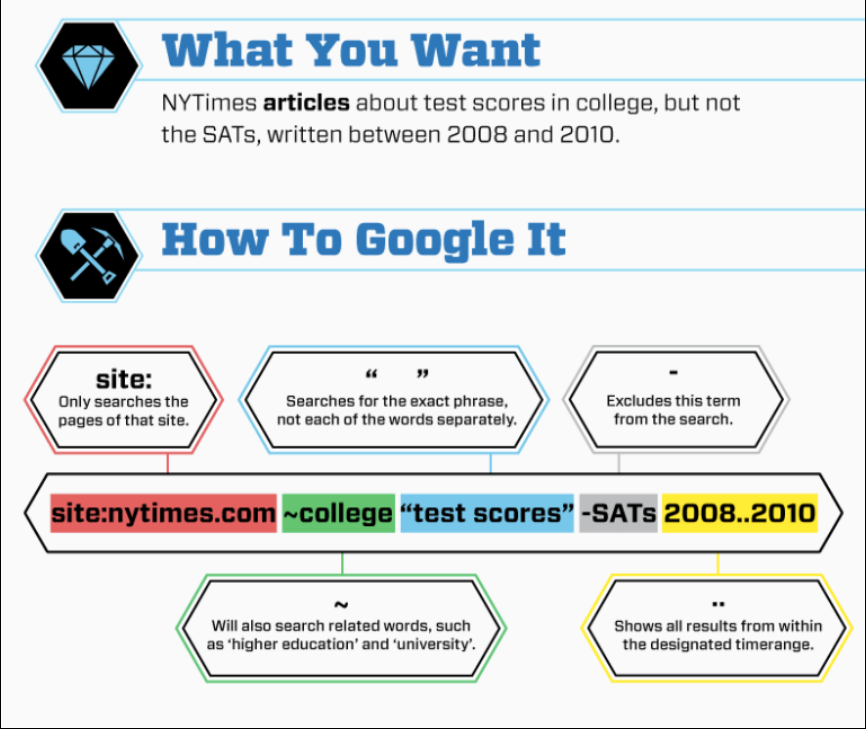
Trick #1: Use Quotation Marks to Search Exact Phrases
Quotation marks tell Google:
“Only show results with these exact words, in this exact order.”
Example:
"simple digital filing system"
Without quotes, Google:
Mixes words
Rearranges meaning
Shows loosely related pages
With quotes, Google:
Finds exact matches
Eliminates noise
Improves accuracy
When to use quotation marks:
Searching for a specific phrase
Looking up an error message
Finding a quote or sentence
Researching a specific concept
This alone can save a huge amount of time.
Trick #2: Use site: to Search Within a Specific Website
The site: operator is one of the most underused — and most powerful — tools.
It tells Google to search only one website.
Example:
site:genifiai.com AI prompts
This searches only Genifi AI for pages that mention “AI prompts”.
Why this is useful:
Find old blog posts quickly
Search large sites without using their internal search
Research competitors
Find documentation or guides
You can use this on:
Blogs
News sites
Forums
Government websites
Educational resources
Once you start using site:, you’ll wonder how you ever searched without it.
Trick #3: Use the Minus (–) Operator to Remove Results You Don’t Want
Sometimes Google shows results that almost match — but not quite.
The minus sign tells Google:
“Show me results without this word.”
Example:
AI tools -enterprise
This removes results related to enterprise-level tools.
Other examples:
side hustle ideas -crypto
email marketing -spam
This is especially useful when:
A topic has a lot of hype
Certain results keep repeating
You want beginner-friendly content
Filtering out unwanted noise improves focus immediately.
Trick #4: Use Time Filters to Find Recent (or Older) Information
Not all information ages well.
Google allows you to filter results by time.
How to use time filters:
Run your search
Click Tools
Choose:
Past hour
Past 24 hours
Past week
Past month
Past year
Custom range
Why this matters:
AI and tech change quickly
Old advice can be outdated
Recent examples are more relevant
For fast-moving topics, time filtering is essential.
Combine Tricks for Powerful Searches
The real magic happens when you combine operators.
Example:
site:genifiai.com "AI for beginners" -advanced
This tells Google:
Search only Genifi AI
Look for an exact phrase
Exclude advanced content
You’re no longer guessing — you’re directing.
Why Better Searching Matters More Than You Think
Searching isn’t just about finding answers.
It affects:
How fast you learn
How confident you feel
How much time you waste
How overwhelmed you get
When searching feels hard, people give up.
When searching feels easy, momentum builds.
This matters even more if you’re:
Learning new skills
Running a business
Exploring AI tools
Researching ways to grow income
Trying to make smarter decisions online
Common Searching Mistakes to Avoid
❌ Using full sentences instead of key phrases
❌ Skimming instead of refining searches
❌ Clicking endlessly instead of adjusting terms
❌ Assuming Google “just knows” what you mean
Google is powerful — but it still needs direction.
Start Small: One Habit That Changes Everything
The next time you search:
Pause for two seconds
Ask: “How can I be more specific?”
Use one operator
That small shift improves results immediately.
You don’t need to memorize everything.
Just knowing these tools exist changes how you search forever.
Final Thoughts
Most people don’t realize how much time they lose to poor searching habits.
Learning a few simple Google tricks:
Saves time
Reduces frustration
Improves learning
Increases confidence
And once you experience better search results, you start approaching the internet differently — with clarity instead of overwhelm.
This isn’t about being “techy”.
It’s about working smarter with the tools you already use every day.
A Simple Digital Filing System Anyone Can Use (Even If You’re Not Tech-Savvy)
Overwhelmed by digital clutter? Learn a simple Google Drive organization system anyone can use — no tech skills required.
A beginner-friendly digital filing system that brings clarity, focus, and momentum without complex tools.
🧠
If you’ve ever opened Google Drive and felt overwhelmed, you’re not alone.
Loose documents. Random folders. Files named things like Final-FINAL-v3. Important ideas scattered across notes, emails, and downloads. And that frustrating feeling of knowing something exists… but not knowing where it is.
Digital clutter quietly slows everything down.
The good news? You don’t need to be tech-savvy or naturally organized to fix it.
You just need a simple system you can actually maintain.
This guide shows you a clean, beginner-friendly digital filing system that brings clarity, focus, and momentum — without complexity
Why Organization Matters
Digital clutter isn’t just annoying — it creates mental friction.
When files are hard to find:
Tasks take longer
Decisions feel heavier
Momentum disappears
When everything has a clear home:
You start faster
You stop less
Progress feels lighter
Organization isn’t about perfection.
It’s about clarity.
And clarity creates momentum.
Core Principle
The Core Principle: Fewer Folders, Clear Purpose
Most people overcomplicate digital organization by creating too many folders.
The goal isn’t a perfect system.
The goal is a system that answers one simple question:
“Where would I look for this later?”
If the answer is obvious, your system works.
Core Folder Structure
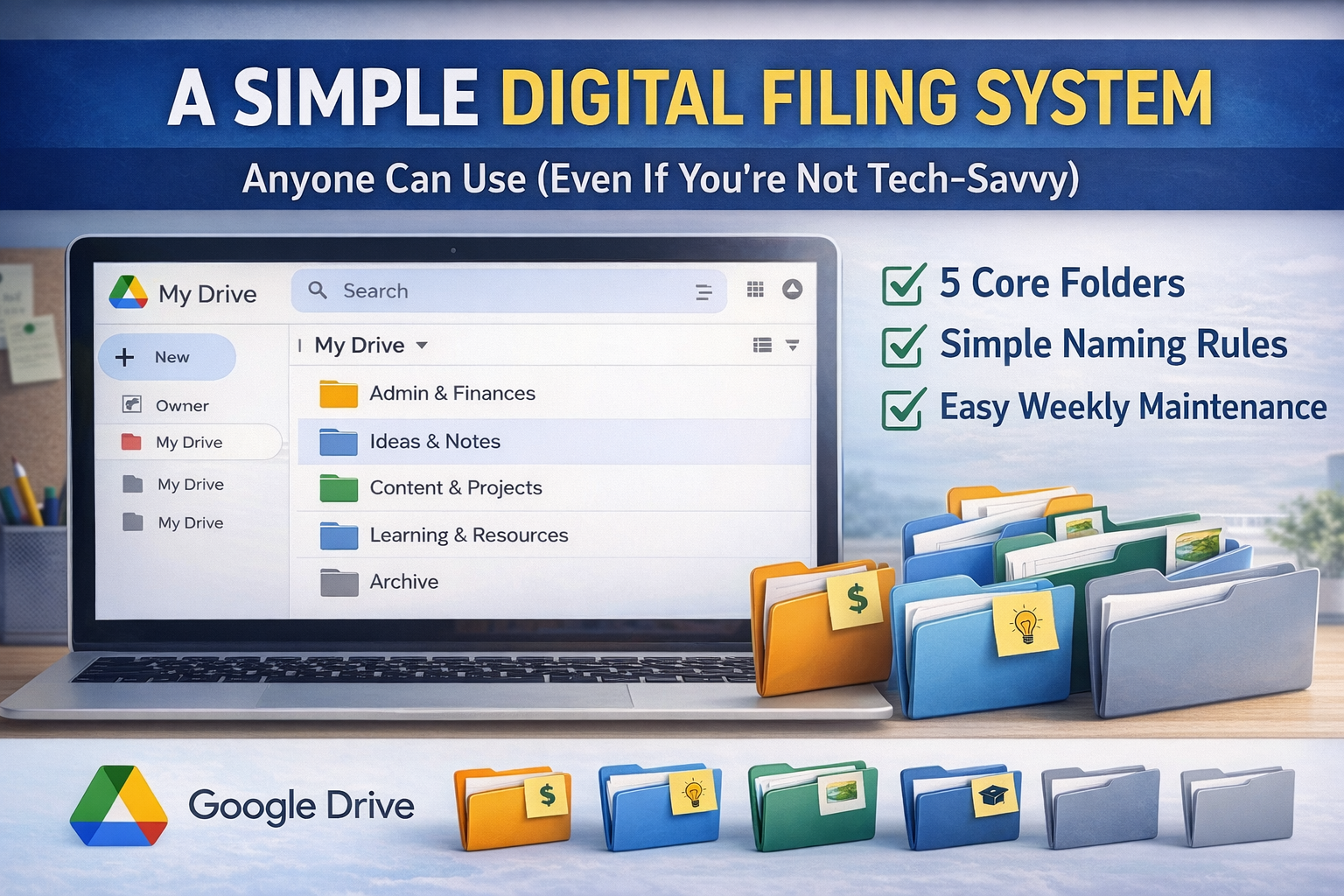
Step 1: Create 5 Core Folders in Google Drive
Create only these five main folders:
1. Admin & Finances
Receipts, invoices, taxes, contracts, anything money-related.
2. Ideas & Notes
Brain dumps, content ideas, planning notes, rough thoughts.
3. Content & Projects
Blog drafts, emails, videos, marketing materials, active work.
4. Learning & Resources
Courses, PDFs, guides, reference material.
5. Archive
Completed projects and older files you don’t need daily.
That’s it. No subfolders yet.
Naming Conventions
Step 2: Use File Names That Make Sense Later
File names matter more than folders.
Use this simple format:
YYYY-MM – Description
Examples:
2026-01 – Blog Ideas2025-12 – Email Drafts2026-02 – Monthly Expenses
Why this works:
Files sort automatically
You recognize them instantly
You stop opening the wrong version
Clarity beats cleverness.
Where Things Go
Step 3: Decide Where Ideas, Content, and Finances Live
Most digital clutter comes from hesitation.
Use this rule:
Ideas → Ideas & Notes
Work in progress → Content & Projects
Money-related → Admin & Finances
If you’re unsure, ask:
“Is this thinking, doing, or managing?”
That question solves most decisions instantly.
Search
Step 4: Use Search Instead of Memory
Google Drive search is powerful:
Search by file name
Search by keywords inside documents
Filter by date or file type
This means you don’t need perfect organization — just consistency.
Folders provide structure.
Search provides speed.
Weekly Reset
Step 5: Do a 10-Minute Weekly Reset
Once a week:
Move loose files
Rename unclear documents
Archive completed work
Ten minutes prevents months of clutter.
Conclusion
You don’t need more tools.
You don’t need a complex system.
You don’t need to be tech-savvy.
You just need a clear starting point.
A simple digital filing system removes friction, creates clarity, and helps momentum build naturally — especially when you’re growing ideas, content, or income.
Organization isn’t busywork.
It’s leverage.
How to Organize Your Gmail So You Never Miss Important Emails Again
Email overwhelm is one of the biggest hidden productivity killers. In this step-by-step guide, you’ll learn how to organize your Gmail using labels, filters, and a simple “action needed” system—so important emails never get buried again. No apps, no tech overwhelm, just a clear setup you can use immediately.
Email is supposed to help us stay organized and informed.
Instead, for many people, it’s a constant source of stress.
Hundreds (or thousands) of unread messages. Important emails buried under promotions. And that subtle anxiety every time you open your inbox.
The good news is this: you don’t need a complicated system to fix it.
You just need a simple way to separate what matters from what doesn’t — and Gmail already gives you the tools.
Why Inbox Overwhelm Happens (And Why It’s Not Your Fault)
Most people use Gmail the same way they always have:
Everything flows into one inbox
Nothing gets filtered
Important emails get buried
The issue isn’t volume — it’s structure.
Once you add structure, Gmail starts working for you.
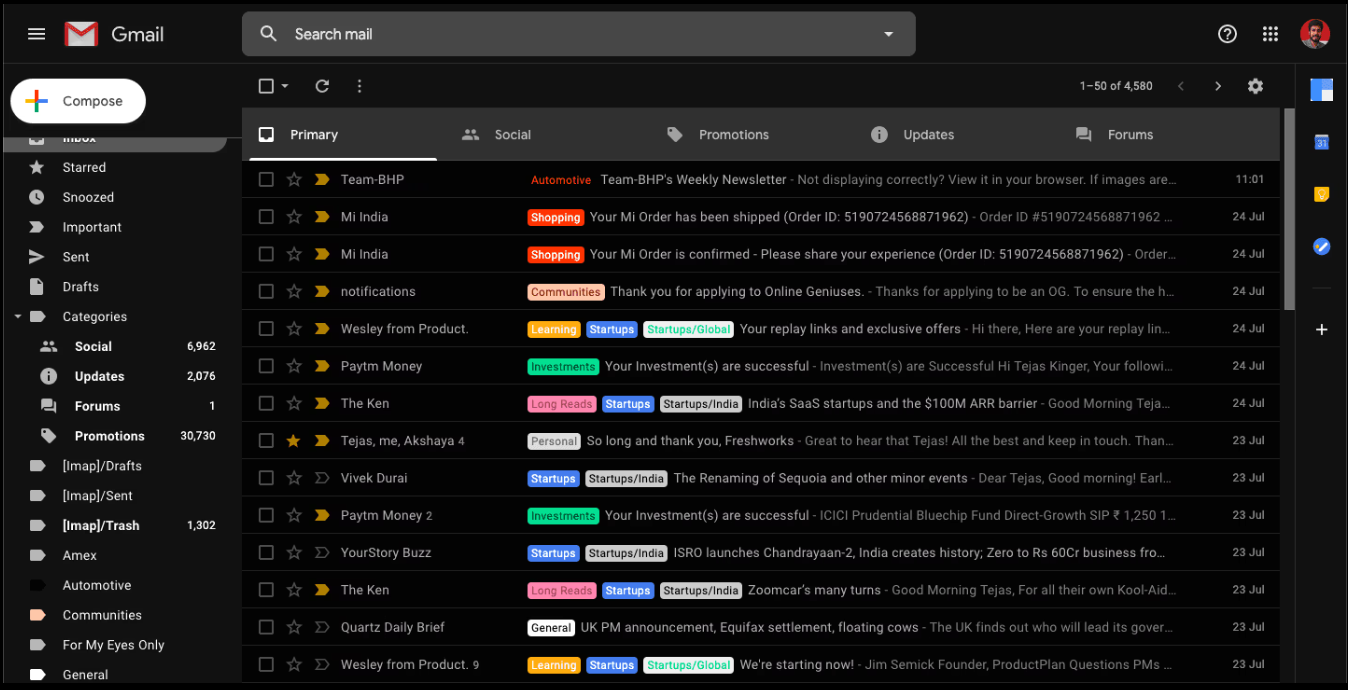
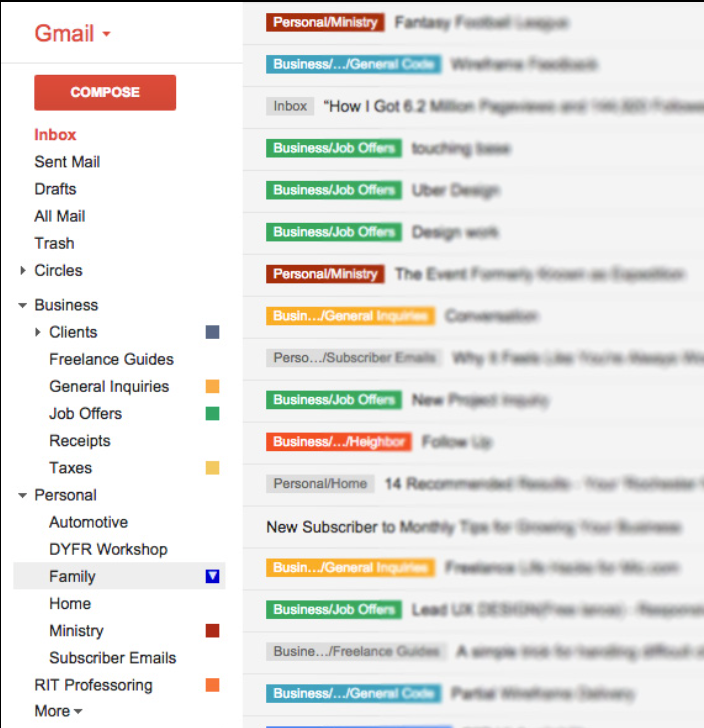
Gmail uses labels instead of folders. One email can have multiple labels, which makes organizing far more flexible.
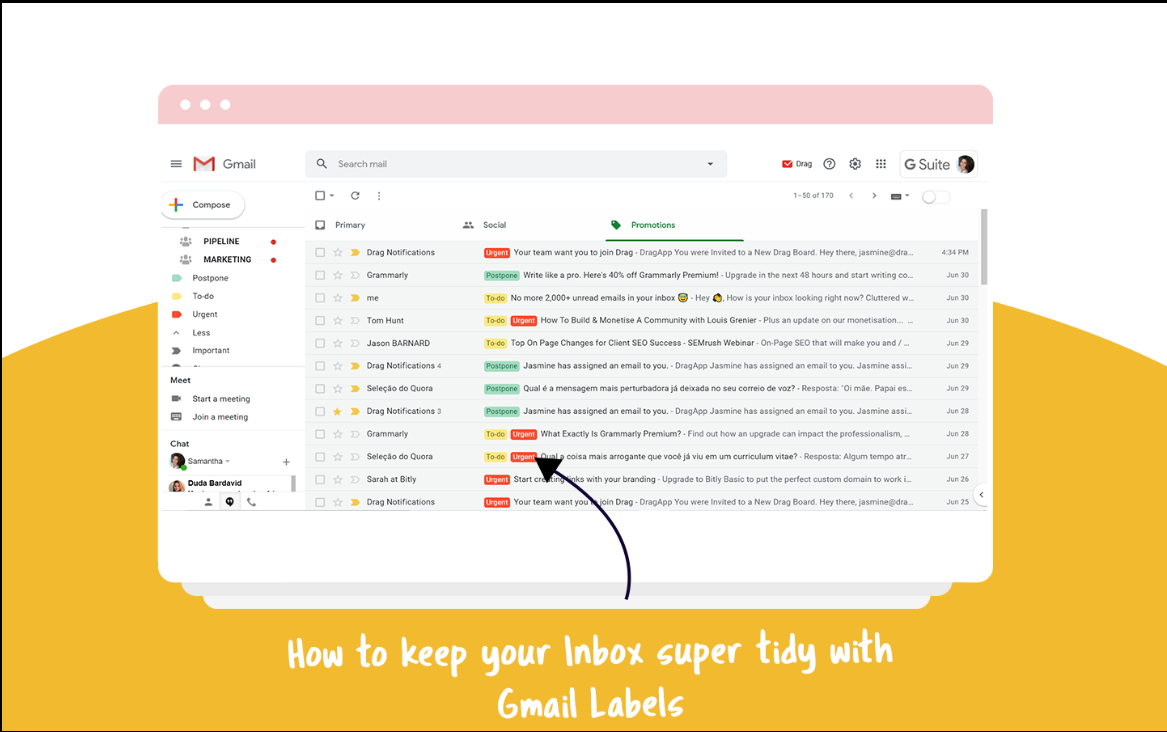
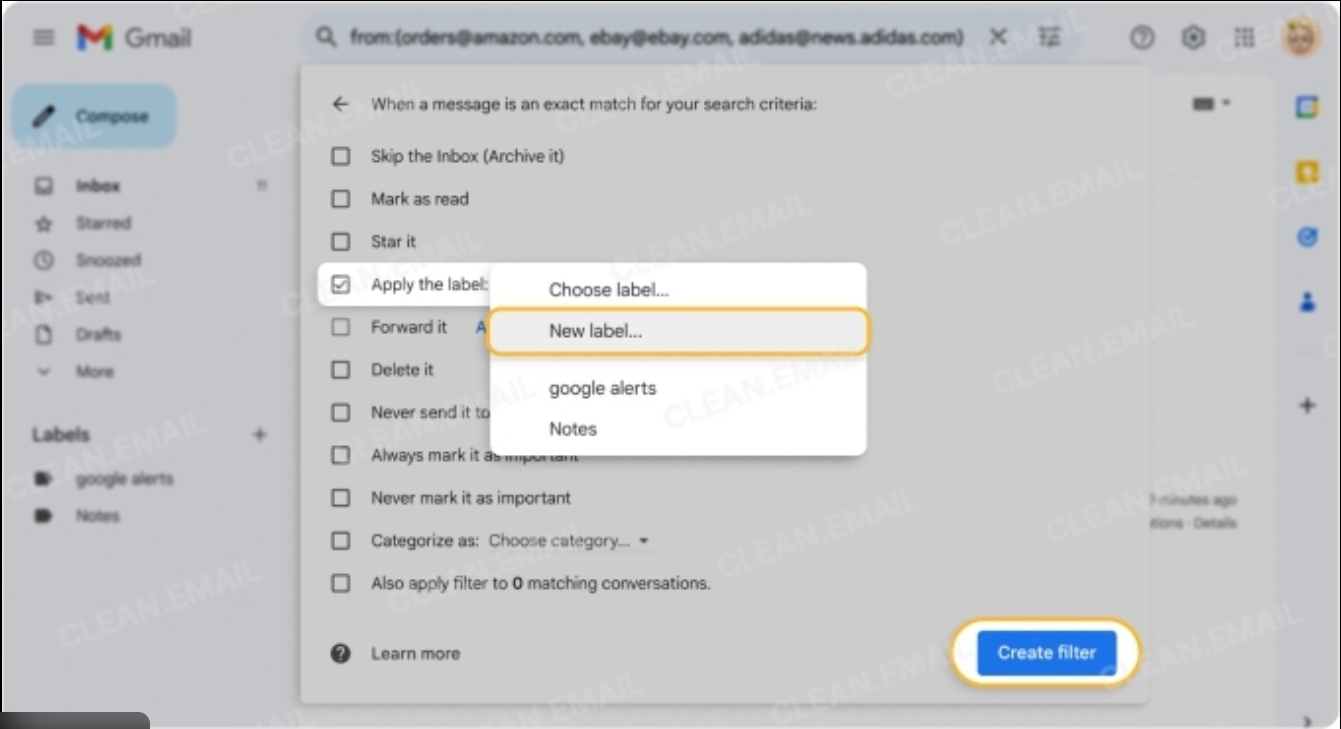
Creating a label in Gmail takes just a few clicks and helps organize emails automatically going forward.
Labels vs. Folders: The One Concept That Changes Everything
Before doing anything else, it’s important to understand how Gmail thinks.
🏷️ Gmail Uses Labels (Not Folders)
One email can have multiple labels
Labels don’t delete or hide emails unless you choose
Think of labels as tags, not filing cabinets
This flexibility is what makes Gmail powerful.
Step 1: Create a Few Simple Labels (Keep This Minimal)
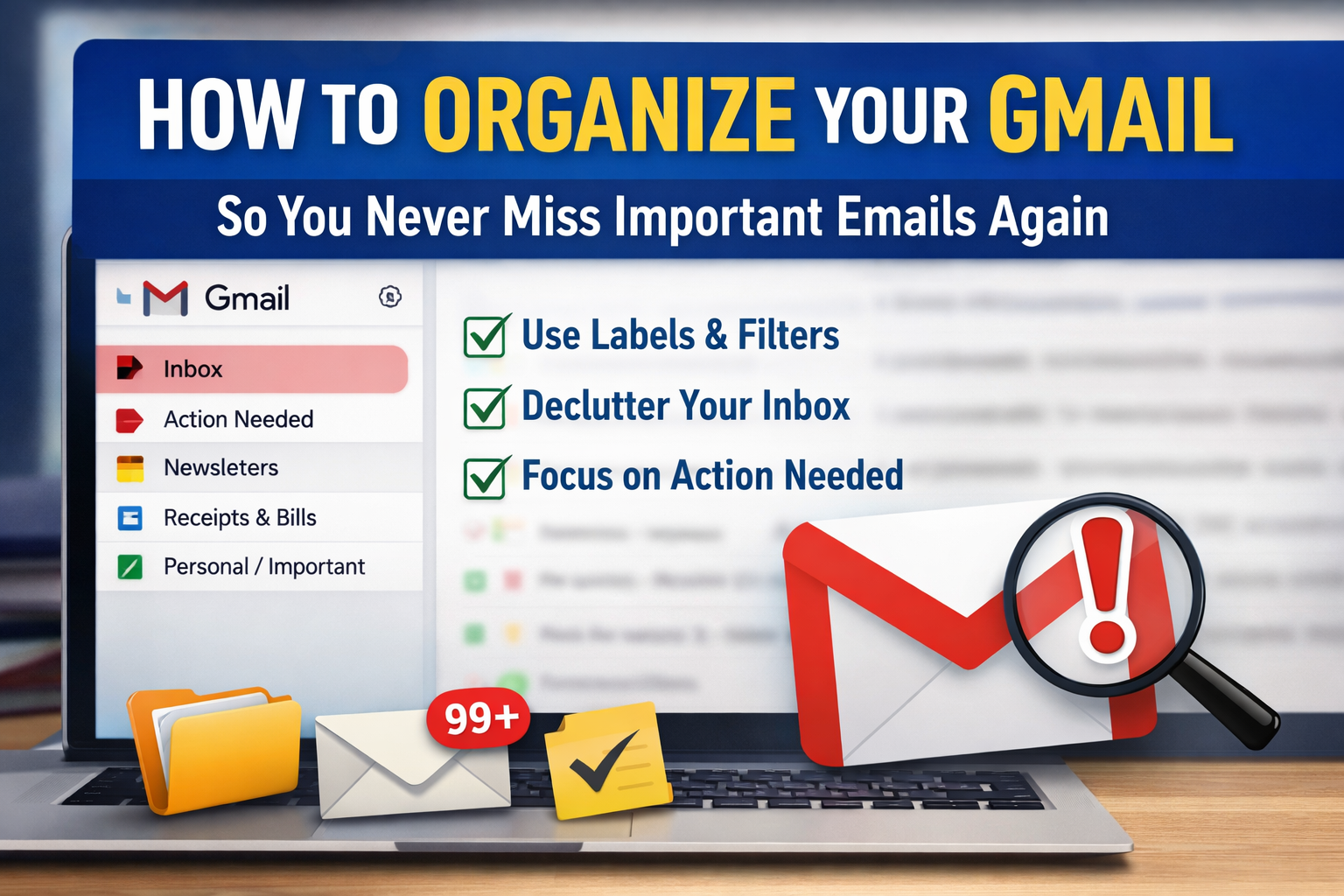
Don’t overcomplicate this. Start with just four labels:
Action Needed
Newsletters
Receipts & Bills
Personal / Important
How to create a label:
Scroll down the left Gmail sidebar
Click More
Select Create new label
Name it clearly
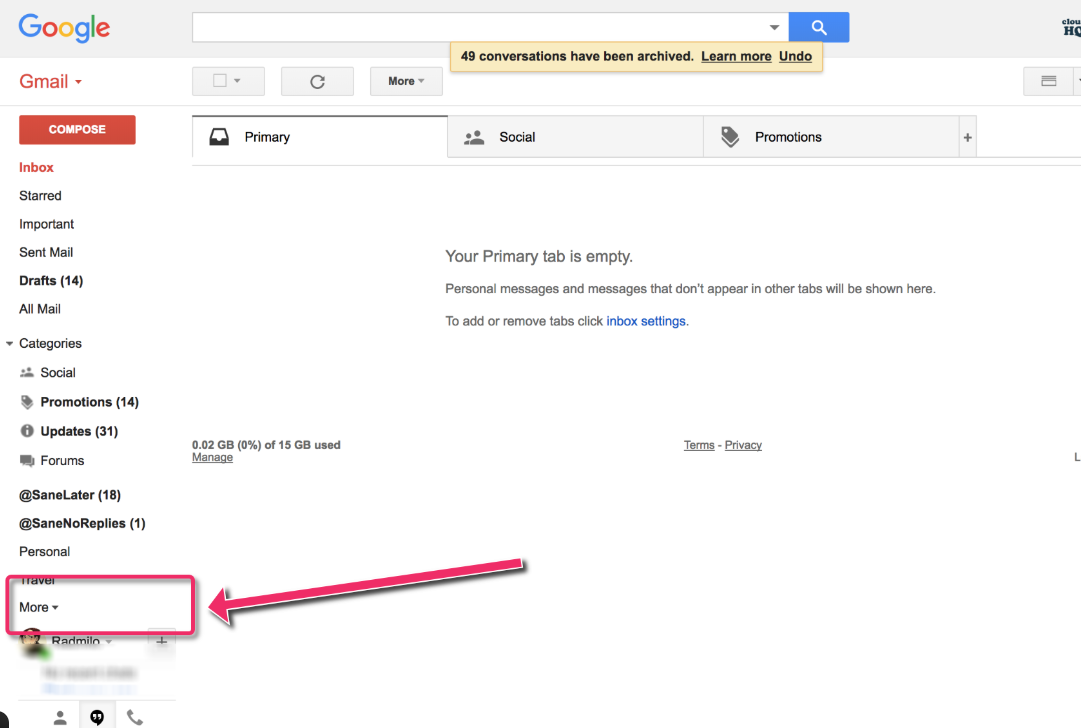
Gmail filters let you automatically label and organize emails before they ever hit your inbox.
💡 Pro tip: Fewer labels = less thinking = more consistency.
Step 2: Automatically Sort Emails Using Filters
Filters tell Gmail what to do before emails ever hit your inbox.
This is where inbox overwhelm disappears.
Example: Filter newsletters automatically
Open a newsletter email
Click the three dots (top-right)
Select Filter messages like these
Click Create filter
Check:
Apply label → Newsletters
(Optional) Skip the inbox
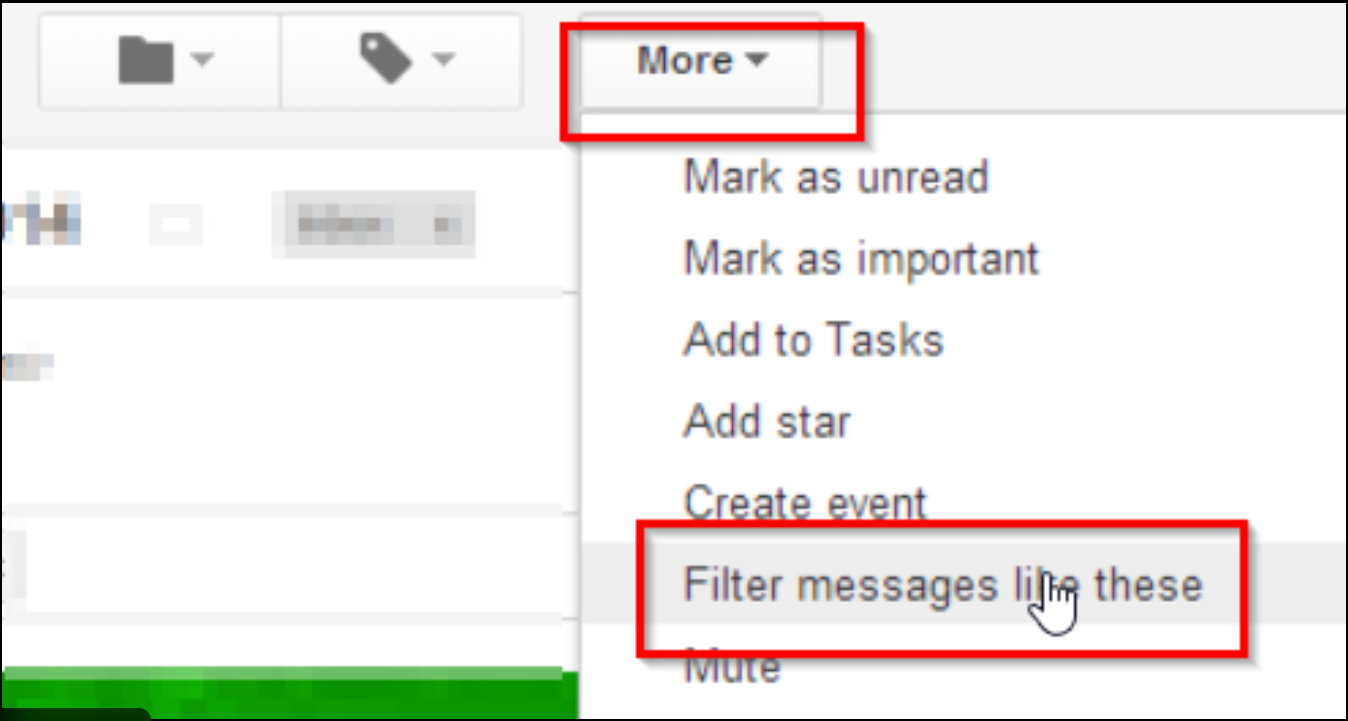
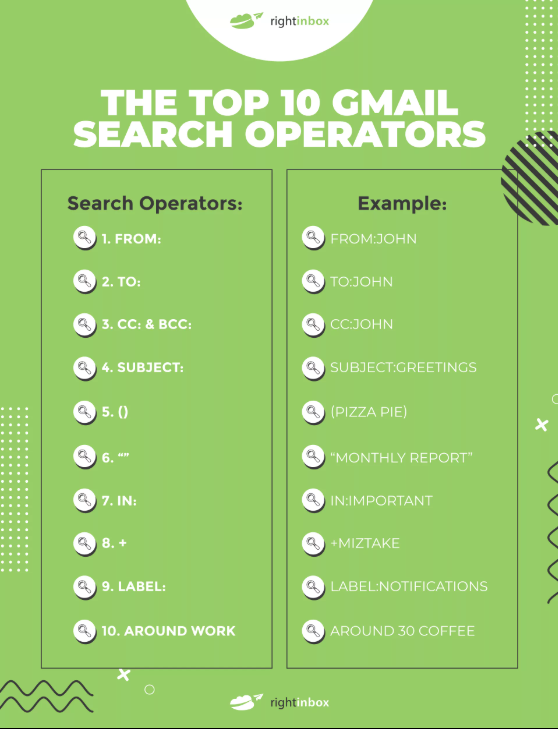
Gmail search operators make it easy to instantly find exactly what you need.
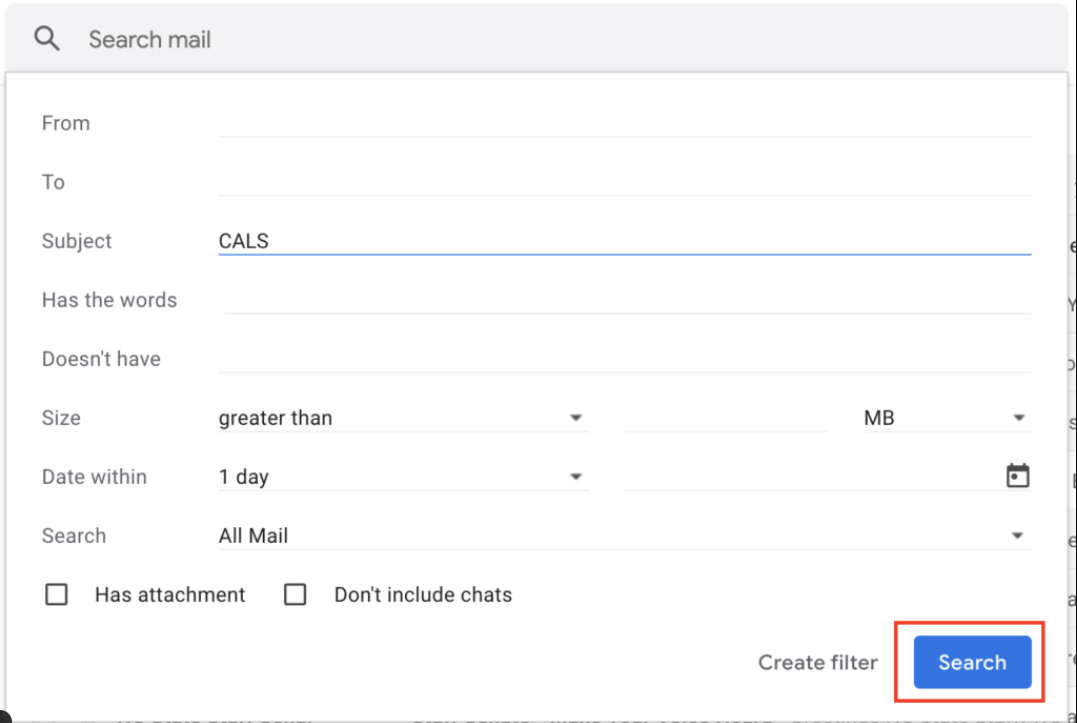
From now on, those emails organize themselves.
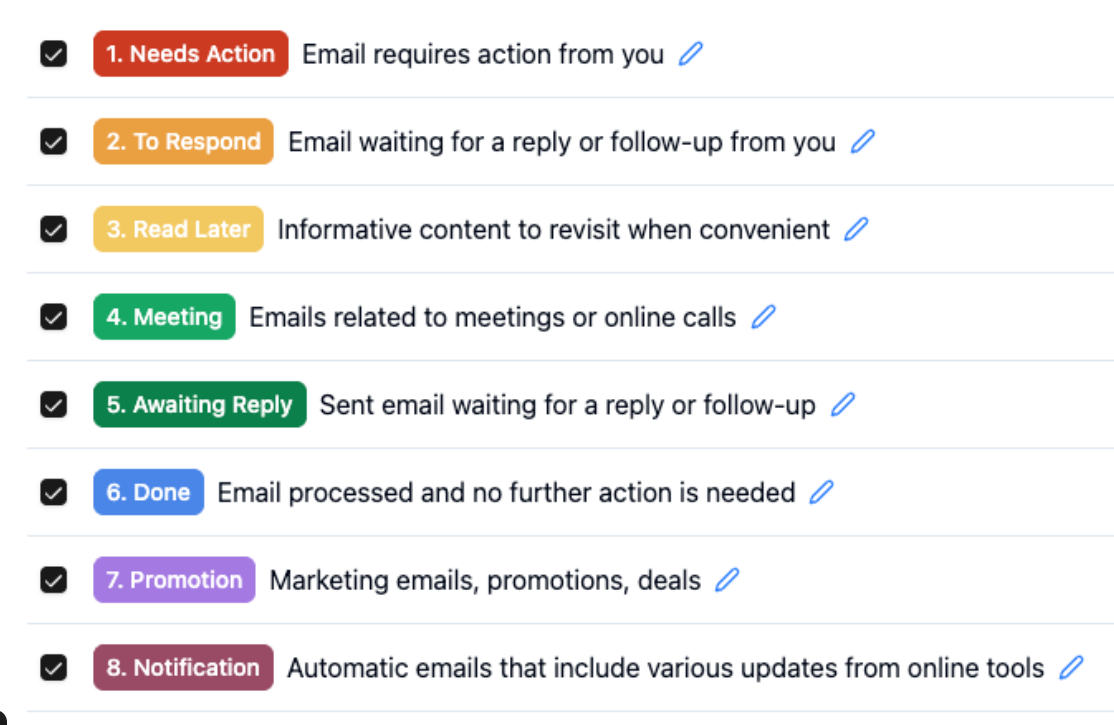
Step 3: Create a Dedicated “Action Needed” View
This is the most powerful part of the system.
Your inbox should not be a to-do list.
Instead, only emails that require action should demand your attention.
How to use the “Action Needed” label:
Apply it when an email needs a response or decision
Remove it when the task is complete
Archive only after action is done
Now, anytime you click the label, you instantly see what matters.
Step 4: Let Go of Inbox Zero — Aim for Inbox Clarity
Inbox Zero creates pressure.
Inbox clarity creates confidence.
With labels and filters in place:
Unread emails no longer equal stress
You trust your system
Important messages don’t get lost
This mental relief alone is worth the setup.
Step 5: Find Any Email Instantly Using Search
Once emails are labeled, Gmail search becomes incredibly powerful.
Try searches like:
label:action-neededlabel:newslettersfrom:amazonhas:attachment
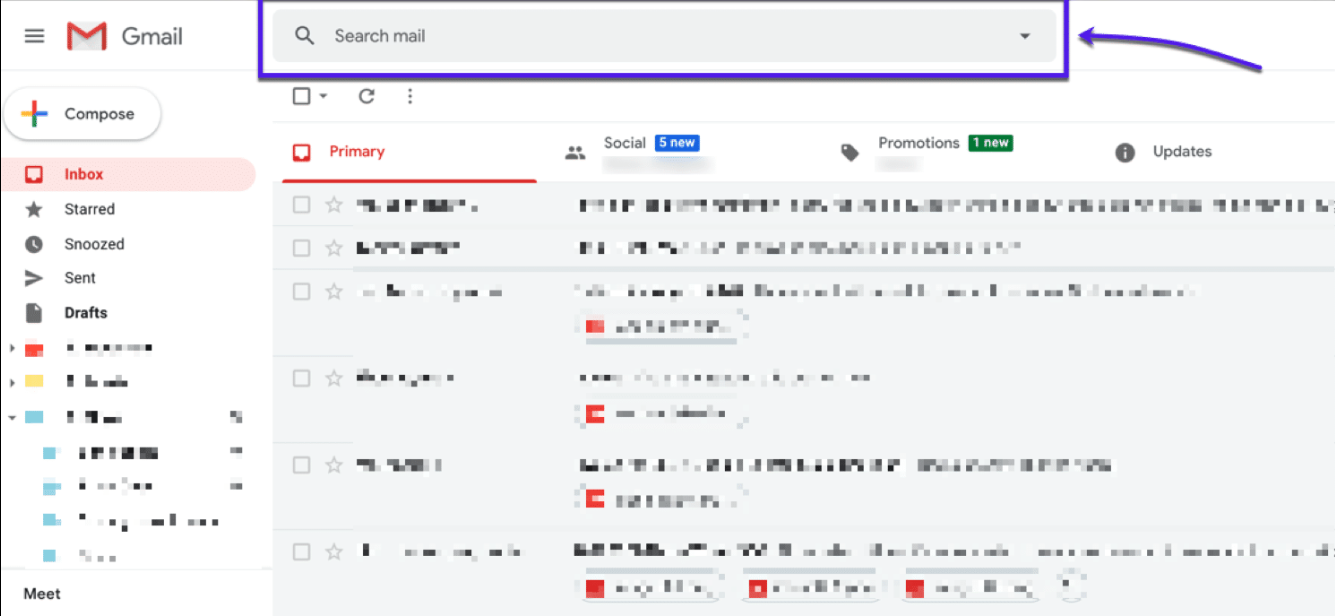
No more scrolling. No more guessing.
Why This Simple System Matters More Than You Think
Email is where:
Opportunities arrive
Tasks pile up
Decisions stall
When your inbox is chaotic, your thinking becomes chaotic.
When your inbox is calm, everything else feels easier — especially if you’re:
Running a business
Learning AI tools
Managing multiple projects
Trying to grow income in 2026
Organization creates mental space.
Mental space creates progress.
Start Small (You Don’t Need to Fix Everything Today)
You don’t need to organize years of email.
Start with:
New emails only
One or two labels
One filter
You’ll feel the difference within a day.
Final Thoughts
You don’t need new tools.
You don’t need a complex system.
You don’t need to be tech-savvy.
You just need a clear starting point.
Organizing your Gmail is one of the highest-leverage, lowest-effort improvements you can make — and it pays you back daily in clarity and focus.